
Voice
Speak instead of typing: Elyra Voice transcribes in the cloud on your license, or a model on this computer writes the text where the cursor is.
AI-assisted translation · language: EN · source: pt-br/sistema/voz.md · sourceHash: sha256:4e887ad35462fad6744d68ff67dfda911e88fc9ee88d2f48f32048d5b2fc6312 · human review pending.
Voice
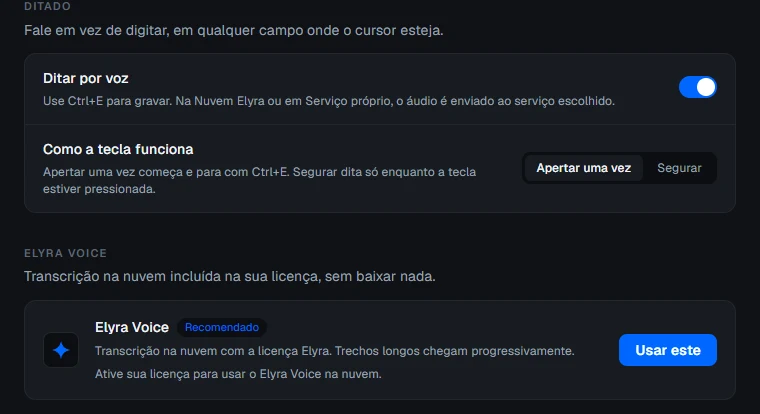
Speak instead of typing, in any field that has the cursor. Everything is adjusted in Ajustes › Assistentes › Voz (Settings › Assistants › Voice): turning voice input on, choosing who transcribes, and adjusting recording.
How to turn it on
- Open Ajustes › Assistentes › Voz (Settings › Assistants › Voice).
- Under Voz (Voice), turn on Escrever por voz (Write by voice).
- Under Como a tecla funciona (How the key works), choose Apertar uma vez (Press once — starts and stops with the shortcut) or Segurar (Hold — records only while the key is down).
The default shortcut is Ctrl+E (Cmd+E on macOS), and it can be changed on the same screen, under Atalho de voz (Voice shortcut). The first time, the app asks for microphone access: without it, voice input stays off.
Elyra Voice
The Elyra Voice block is cloud transcription included in your license, with nothing to download. When you choose it for the first time, the app warns that the audio will be sent to Elyra and shows the period usage (for example, how many minutes of the quota are already used).
On this computer
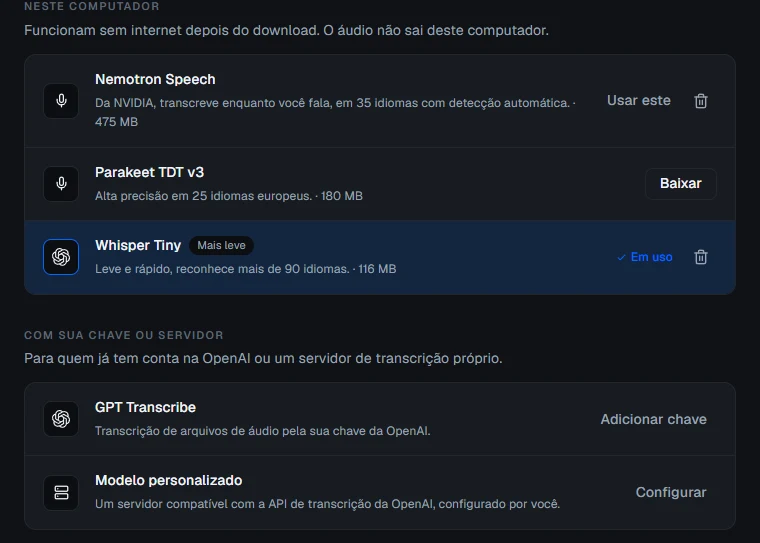
The models on this computer work without internet after the download, and the audio never leaves your computer:
| Model | What it offers |
|---|---|
| Nemotron Speech (NVIDIA) | Writes as you speak, in 35 languages with automatic detection (~475 MB) |
| Parakeet TDT v3 | High accuracy in 25 European languages (~180 MB) |
| Whisper Tiny | Light and fast, in over 90 languages (~116 MB) |
| Cohere Transcribe | The most accurate of the local ones, in 14 languages; asks for more memory (macOS only) |
| Apple Speech | System-local transcription (macOS only) |
With your key or server
For those who already have an OpenAI account or their own transcription server:
- GPT Transcribe: uses your OpenAI key; the audio goes straight to OpenAI.
- Custom model: a server compatible with the OpenAI transcription API, configured by you.
Your key is a secret. It is kept by the app, it does not appear on screen after being saved, and it never appears in an example in this documentation.
Recording
The Gravação (Recording) block adjusts how the audio reaches the model:
- Idioma da fala (Speech language): detect automatically or a fixed language. Some models do not detect the language on their own: with them, automatic follows the system language.
- Microfone (Microphone): the system default or a specific microphone.
- Pausar música ao gravar (Pause music while recording): pauses Music and Spotify on the Mac, and resumes only the playback Elyra paused.
- Atalho de voz (Voice shortcut): the keys that start and stop recording, or the side mouse button.
- Usar atalho com o Elyra em segundo plano (Use the shortcut with Elyra in the background) (macOS only): the text stays inside Elyra — nothing is pasted into other apps. This shortcut has its own default (Cmd+Shift+Space) and can be changed on the screen.
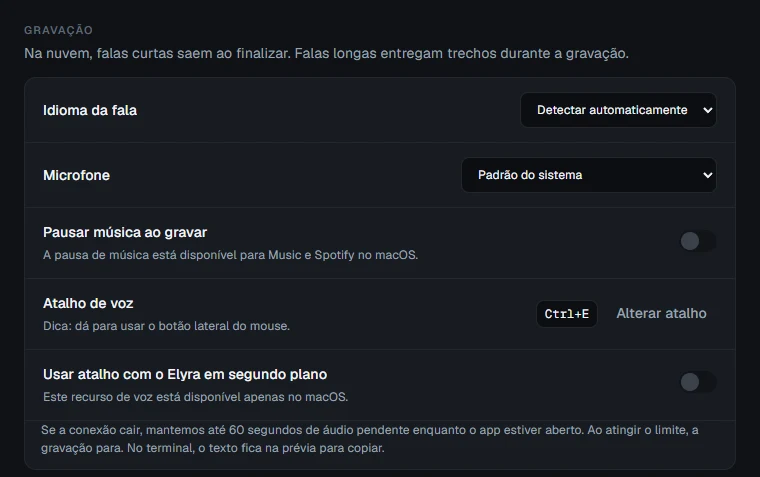
If the connection drops in the middle of a cloud recording, the app holds up to 60 seconds of pending audio while it is open. In the terminal, text that could not be delivered stays in the preview for copying.
The microphone button
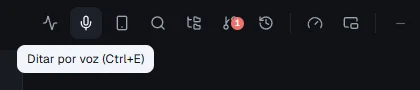
With voice input on, the top bar gains a microphone button, next to Agents. It starts and stops recording with no shortcut: one click to speak, another to stop.
The text goes where the cursor is
The text goes where the cursor is, in real time, with no need to finish to see the result: with the models on this computer, each sentence lands on a pause in speech; in the cloud, long speech delivers passages during the recording. If you switch fields in the middle of a recording, the rest goes to the new field. In the terminal, the text enters the focused pane (line breaks become spaces: nothing is sent until you press Enter). When there was no field at all, the text stays in the preview and the card offers Copiar texto (Copy text).
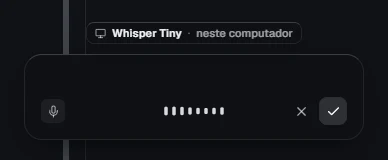
The voice card
While recording, a card shows the app is listening. It can be dragged anywhere on screen and remembers its position. Finalizar (Finish) ends the recording, and the card keeps Gravação finalizada (Recording finished), the Gravar de novo (Record again) button and the X to close.