

Automation actions
The chain of actions that runs after the trigger: command, note, request to an agent, new agent on the Canvas, conversation and notification.
AI-assisted translation · language: EN · source: pt-br/fluxos/automacoes-acoes.md · sourceHash: sha256:4f5aec5108f60088c33aa72c1571de2ddc520604af01419b596717e0aec93b9e · human review pending.
After the trigger, the automation runs a chain of actions, in order. Use do this for the first one and one more action to chain others. Each action has Change type, Move up, Move down and Remove action.
The chain stops at the first failure. If action 2 fails, action 3 does not run, and the history says which action it stopped at (“Failed at action 2”).
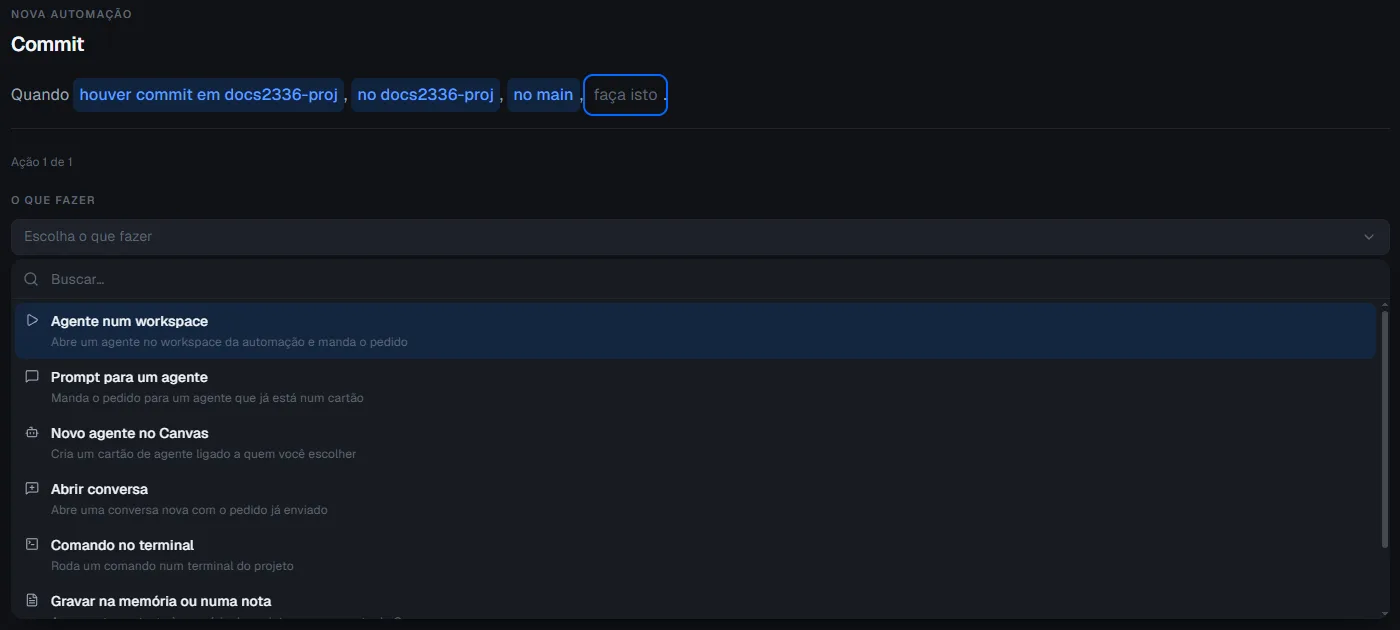
Terminal command
Runs a command in a terminal of the automation’s workspace.
- Command: the text the terminal receives, such as
pnpm test. - The command has 300 seconds to finish. If it runs out, the action fails with “The command exceeded the time limit”. A non-zero exit also fails the action (“The command exited with code N”).
- It does not run on a remote project (SSH) yet. The editor refuses and asks for another action or a local project.
Write to memory or a note
Appends text to the end of a project Canvas note. Choose Write to, Canvas note, the note and the text. If the project has no notes, create one on the Canvas and come back.
Writing to the project memory is not available for automations yet: the action fails and the history says so.
Prompt an agent
Sends a request to an agent that is already on a card. Elyra writes the request text into the card’s terminal and submits it with Enter, as if you had typed it.
- Choose the agent (a card in the project) and the text under What it asks. The text accepts skills, file paths and commands, like the composer.
- The card must exist and have an active session. Otherwise the action fails (“The card has no live session right now.”).
- If there is no agent card in the project, create one on the Canvas and come back.
New agent on the Canvas
Creates an agent card on the Canvas, linked to a card you choose (Linked to), and sends the initial request.
- Agent: which agent to open.
- Open as: Terminal or Conversation. Prefer Terminal: this agent’s conversation is still experimental, and with Conversation the run fails if the feature is not turned on in Settings > Experimental.
- The source card must still exist (“The source card is gone.”).
Open a conversation
Opens a new conversation (the Chat screen) with the request already sent. Choose the agent.
Agent in a workspace
This is the “run the agent in my project” action: it opens an agent in the automation’s workspace and sends the request. It is the one closest to what automations have always done.
- Agent and What it asks.
- Where it runs comes from the sentence: the chosen workspace, or a new one for each run.
- With an existing workspace, the agent session can be New on every run or Reuse the previous one.
- With a new workspace for each run, choose Create from a branch (the base branch). The default is the project’s. There is also the option to run the project setup in the new workspace.
Notification
Shows a system notification, with a title and a message.
Which action to choose
| I want to… | Use |
|---|---|
| Run tests or a script | Terminal command |
| Have an agent work on the project | Agent in a workspace |
| Talk to an agent that is already open | Prompt an agent |
| A new agent on the Canvas, visible and linked to another card | New agent on the Canvas |
| Leave a record | Write to memory or a note |
| Be notified | Notification |
Example: test and notify
- When: Project Git, event commit.
- Action 1: Terminal command,
pnpm test. - Action 2: Notification, title “Tests finished”.
If the tests fail, action 1 fails, the notification is not shown and the history says “Failed at action 1”.
Server without a window
On the Elyra Cloud server, which runs without a window, the chain runs the same way, but two actions have nowhere to appear: Notification (“Notifications are unavailable on a server without a window”) and Open a conversation (“Conversation is unavailable on a server without a window”). Writing to memory also remains unavailable. See Webhook, GitHub and GitLab.
From the command line
Actions go in --actions, a JSON list with one or more actions, in order. Each action has a kind:
kind |
Fields |
|---|---|
run-terminal-command |
command; optional workspaceId, timeoutSeconds |
write-memory-or-note |
target (note or memory), content; optional noteId |
prompt-existing-agent |
cardId, prompt |
create-canvas-agent |
parentCardId, initialPrompt, agentId; optional surface (terminal or chat) |
open-conversation |
optional provider, initialPrompt |
notify |
title, body |
create-work-item |
columnId, title; optional description |
move-work-item |
itemId, toColumnId; optional toIndex (zero-based index) |
update-work-item |
itemId and at least one of title, description, assignee ({agentId,displayName} or null to clear) |
create-work-column |
label |
rename-work-column |
columnId, label |
move-work-column |
columnId, toIndex (zero-based index) |
run-agent-in-workspace |
prompt, agentId, workspaceMode (existing or new_per_run); optional workspaceId, reuseSession, baseBranch |
Task and column actions use the automation project’s board. Omitted task fields stay unchanged;
assignee: null clears the assignment. In the editor, Keep current preserves the assignee and
Unassigned clears it.
elyra automations create --name "Tests on every commit" \ --trigger daily --prompt "Tests on every commit" --provider codex --repo my-project \ --trigger-json '{"kind":"git-local","repoId":"my-project","events":["commit"]}' \ --actions '[{"kind":"run-terminal-command","command":"pnpm test"},{"kind":"notify","title":"Tests","body":"Finished"}]'When editing with elyra automations edit, --actions replaces the whole chain.