

Connect outside agents through MCP
Use ChatGPT, Claude or another MCP-capable agent to work on your Cloud computer, through your Cloud address.
Besides the browser and another Elyra, your Cloud accepts outside agents: ChatGPT, Claude, Claude Code and any client that speaks MCP (Model Context Protocol) over HTTP with OAuth sign-in. Once connected, the agent works on the computer that is your Cloud, with a terminal, files and the Elyra CLI.
Who can use it now
Until October 9, 2026, the Cloud is open only to the Founder plan. With the Cloud off, the address below does not respond.
The address
With the Cloud on, the connector address is your Cloud address plus /mcp:
https://<your-username>-cloud.elyra.sh/mcpCopy it from Settings → Elyra Cloud → Connected apps, with the Copy button.
Connect
In every app the path is the same: register the address as a connector and, when the app opens the sign-in page, sign in with your Elyra account and approve.
The screenshots show the interface in Portuguese; the steps are the same in any language.
ChatGPT
-
Open Settings → Plugins and choose Explore catalog.
-
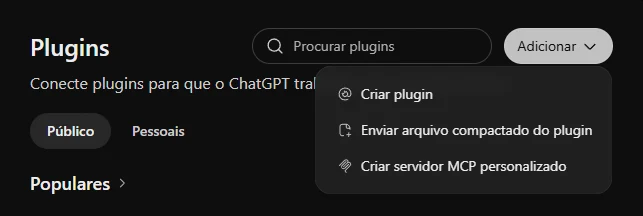
Under Add, choose Create custom MCP server.
-
Give it a name (for example,
Elyra), keep Server URL selected under Connection and paste the addresshttps://<your-username>-cloud.elyra.sh/mcp. Authentication stays on OAuth.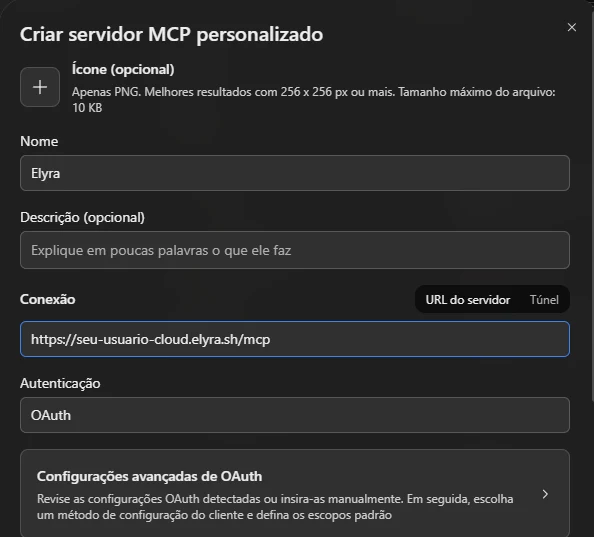
-
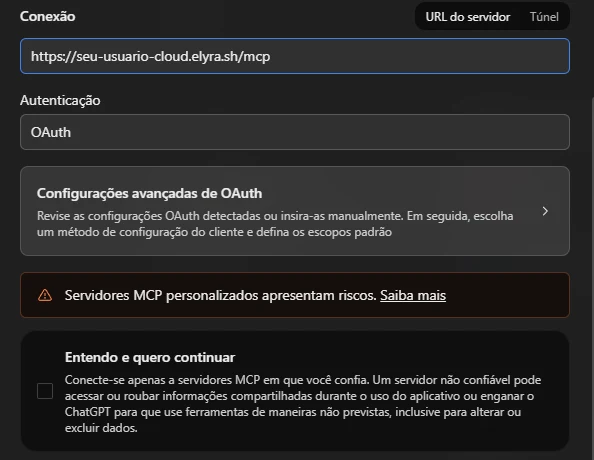
Check the box confirming you understand the risks, create the server and finish the sign-in (see Sign-in and consent).
-
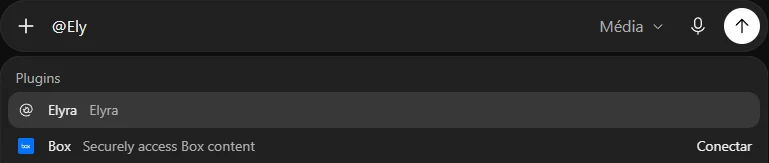
Elyra shows up under Installed. To use it in a conversation, type
@in the message box and choose Elyra, or choose Test in chat on the plugin page.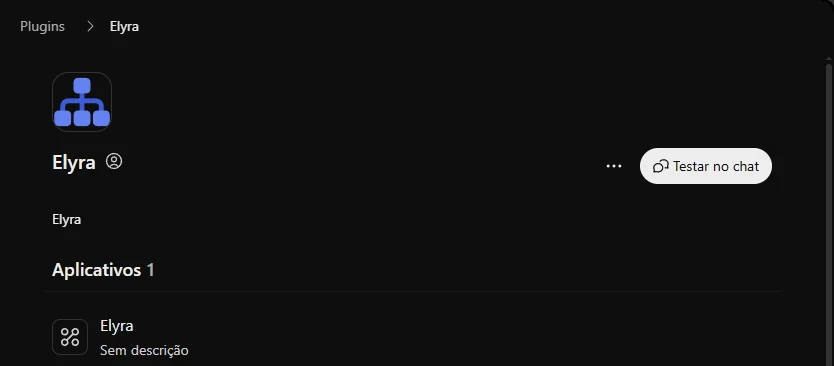
Claude (claude.ai and the Desktop app)
-
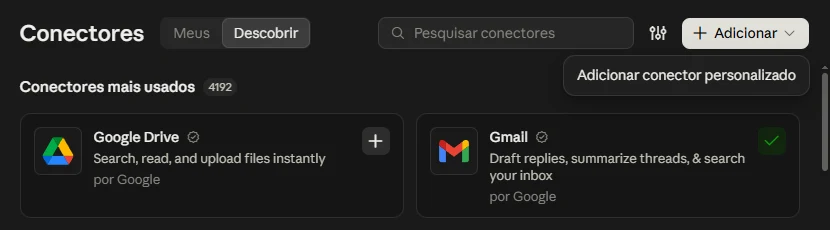
Open Settings → Connectors (under Customize).
-
Choose Add → Add custom connector.
-
Give it a name (for example,
Elyra), paste the address in the MCP server URL field and choose Continue.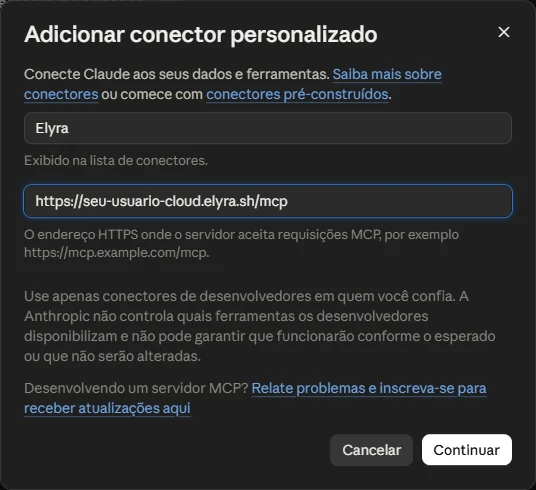
-
Finish the sign-in when the page opens. In a conversation, turn the connector on from the + button in the message box.
Claude Code
claude mcp add --transport http elyra https://<your-username>-cloud.elyra.sh/mcpInside Claude Code, run /mcp, pick elyra and authenticate in the browser.
Codex CLI and other clients
Any MCP client that supports HTTP and OAuth works: register the address and finish the sign-in. In Codex CLI, the server is added as a remote MCP in Codex’s configuration file; check the documentation of your version for the exact syntax.
Sign-in and consent
- The app opens a page on your Cloud asking you to sign in.
- Sign in with the Elyra account (the same as browser access, with the code sent by email).
- The page shows which app wants to connect and what it will be able to do. Tap Allow only if you started the connection.
- The app returns connected. Access renews itself for up to 30 days; after that, the app asks you to sign in again.
Only the license owner can approve a connection.
What the agent can do
| Tool | What it does |
|---|---|
shell |
Runs a command on the computer, as your user. Returns the exit code, output and errors. Has a time limit (2 minutes by default, 10 at most). Processes left running in the background keep running, but their output does not come back. |
elyra |
Runs a command of the Elyra CLI: projects, workspaces, terminals, Canvas cards. |
screenshot |
Takes a screenshot of Elyra itself and returns the image, so the agent can show you what it displays: the app (the open window or, with no window, the interface rendered on demand; the default) or the computer screen. Returns a clear error if the computer has no display. |
browser_screenshot |
Takes a screenshot of a page in Elyra’s embedded browser: the active tab, a card or a tab by id, the visible area only or the full page. |
read_file |
Reads a text file, with line numbers, in pages. |
write_file |
Creates or replaces a file. |
edit_file |
Replaces an exact piece of a file. |
list_dir |
Lists a folder, with type and size. |
search |
Searches files for a text or regular expression. Without ripgrep installed it searches the literal text and says so in the answer. |
list_skills |
Lists the Elyra skills (CLI manuals: orchestration, Canvas, browser, emulator, docs), with description and reference files. |
read_skill |
Reads a skill (its SKILL.md) or a reference file inside it. The agent should read the elyra skill before using the elyra tool. |
Both capture tools return a light image (up to 1280 px wide and about 300 KB) together with a public link to open it, valid for 5 minutes (the one for the whole computer screen opens only once), for clients that cut large results; format picks the image only, the link only or both. To see Elyra or a page the agent should use these tools, not the CLI screenshot and browser screenshot commands.
Relative paths start from your home folder.
Security
- The connected app acts as you on that computer. It runs commands and reads and writes files with your permissions, without asking for confirmation at each step.
- Connect only apps you trust, and read the app name on the consent page before allowing.
- Revoke when you no longer need it: in Settings → Elyra Cloud → Connected apps, tap Revoke next to the app. Its access ends immediately.
- A capture link is public for 5 minutes. Anyone who has the link can open the image in that window, with no sign-in. The link for the whole computer screen opens only once. If the image may show something sensitive, ask for
formatwith the image only. - Disconnecting the computer from the Cloud drops all connections at once.
- Each connection appears in the list with the app name, so you know who has access.
See also Elyra Cloud security and data and Troubleshooting the Cloud.